
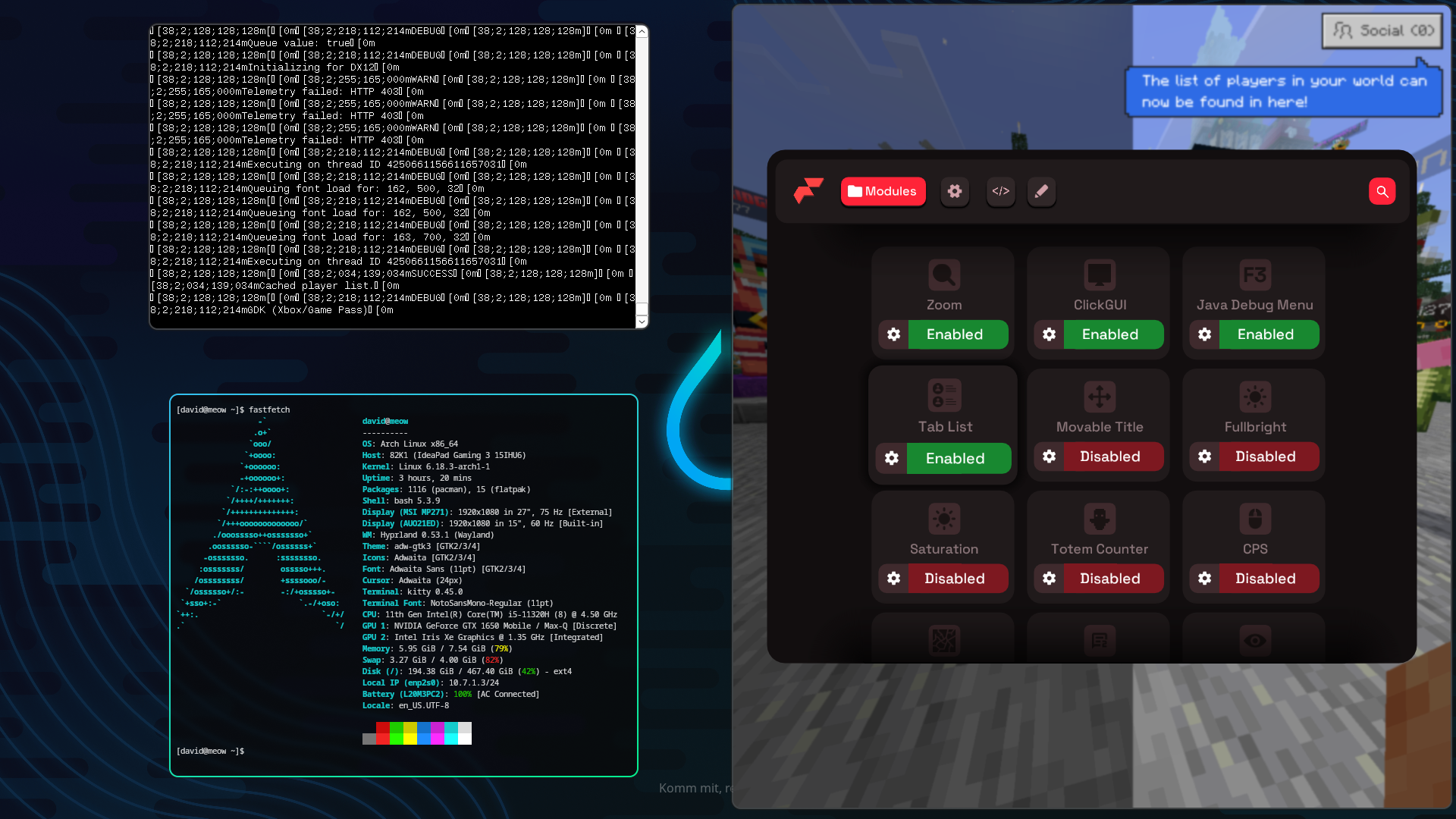
Minecraft for Windows (Minecraft from now on) has recently switched from being a UWP app to a GDK app. UWPs were supposed to be a neat format for most Windows apps, but it didn’t catch on. Wine, a Windows translation layer, has never supported UWP apps well enough to run any games, but with an experimental version of Wine - WineGDK, one can actually run Minecraft GDK!
Traditionally, the Android version of the game was emulated, which worked well enough, but it didn't support DLL injection (for clients). With the GDK builds, you can inject certain clients into them! Flarial will be used here, as I had the most success with it. In this guide, I'll explain the current state of affairs, what you need to get running, and how to run the game.
Automatic install script!
I've taken the time to make a neat script which gets you along most of the way. To use it, run this command in your terminal:
bash <(curl -fsSL https://raw.githubusercontent.com/DvidPiDev/mc-gdk-install-script/refs/heads/main/script.sh)A video guide on using this script, adding a client DLL and importing the game into Lutris is available as well: https://www.youtube.com/watch?v=car5MfQZK9M
Current Issues
- This entire guide is one band aid fix after another, from lots of trial and error
- Noticeably higher input delay (even with the increased input response setting)
- No way to disable VSync (even with clients)
- DX12 is mandatory, running on DX11 causes flickering or a crash upon launch
- You can't pick a custom skin, the game crashes trying to pop up an explorer window
- (Flarial) Game crashes upon pressing F3
- (Flarial) Modules don't render
Prerequisites
I assume you already have some Linux knowledge, you aren't afraid to type into a terminal, you're running Arch (or a derivative) and you have Java 25 installed. You'll need to add the multilib repo to grab 32 bit builds of Vulkan and some other tools we'll use. Simply add this at the end of /etc/pacman.conf:
[multilib]
Include = /etc/pacman.d/mirrorlist
And update your repos with pacman -Syu. Now you can install some simple dependencies. I assume you're on NVIDIA here:
pacman -Syu --needed lib32-nvidia-utils lib32-vulkan-icd-loader lib32-vulkan-mesa-implicit-layer lib32-vulkan-mesa-layers nvidia-utils vulkan-icd-loader vulkan-mesa-implicit-layers vulkan-mesa-layers unzip umu-launcher lutrisGetting WineGDK
For the simplicity of this guide, everything will happen in a single folder, and that is ~/.mcbe. Create that folder, go into it and run:
curl -LO https://github.com/Weather-OS/GDK-Proton/releases/download/release/GE-Proton10-25.tar.gz
tar -xvf GE-Proton10-25.tar.gz && mv GE-Proton10-25 proton
rm GE-Proton10-25.tar.gz
This downloads and extracts the Proton-ifed version of WineGDK into ~/.mcbe/proton.
Getting Minecraft
Unfortunately, this isn't as simple as downloading it from a site. Typically, you'd create a Windows VM, download Minecraft from the Xbox App (into a known location, like C:\XboxGames), launch Minecraft at least once (but don't sign in), then go into C:\XboxGames\MinecraftForWindows\Content and decrypt the Minecraft.Windows.exe. The simplest way to do that is to move the executable to your desktop, then copy it from your desktop back into the Content folder. Now you can zip up the Content folder and move it back to your Linux install in whatever way you see fit. Ideally, place the Content directory into a new, game directory. (Source)
mkdir game && cd game
unzip name-of-your-zip.zip
# All game files should now be in .mcbe/game/Content
To get Minecraft working as well, you'll have to patch the XCurl.dll file inside of the Content directory and add an extra SSL certificate (for some reason). To do this, run:
curl -LO https://mirror.msys2.org/mingw/mingw64/mingw-w64-x86_64-curl-8.17.0-1-any.pkg.tar.zst
tar -xvf mingw*
rm mingw-*
mv mingw64/bin/libcurl-4.dll $HOME/.mcbe/game/Content/XCurl.dll
rm -r mingw*
mkdir -p $HOME/.mcbe/game/etc/ssl/certs
curl -LO https://curl.se/ca/cacert.pem
mv cacert.pem $HOME/.mcbe/game/etc/ssl/certs/ca-bundle.crtFeel free to compare this directory structure with the example one at the very end of this guide.
Getting ProxyPass
As this version of WineGDK doesn't support login (yet), you'll have to use ProxyPass, which hosts a LAN world that connects directly to a server with your account. Create a new directory (e.g. proxy) in the .mcbe directory. Go into it and run
curl -LO https://github.com/Kas-tle/ProxyPass/releases/download/master-58/ProxyPass.jar
java -jar ProxyPass.jar
A browser window should pop up, asking you to log in. Do so and wait until you see "Bedrock server started on ...". Ctrl + C the process and edit config.yml. Change proxy:port to 19132 and destination:host to whatever you want (this will be the server you'll connect to) geo.hivebedrock.network will connect you to Hive, so feel free to set that.
Getting Flarial
The Flarial launcher doesn't run on Wine due to its dependency on Windows APIs not present in Wine. You can instead download the latest testing DLL and an injector like newloader. (The source is unknown, I just happen to have the download link from somewhere) The benefit to using newloader is that it's headless (it can inject without popping up a window) and it actually works.
Create a new directory in which you'll store the client related stuff (eg. client) in the .mcbe directory. Move the newloader executable and DLL into this folder. Make sure the DLL is called Flarial.dll!
Create launch and exit scripts
Since getting this to run is a multi-step procedure, we'll use a script that:
- waits for 10 seconds (a reasonable time for Minecraft to launch - there's no better way to do this)
- launches the injector, and injects the client
- starts ProxyPass
The exit script simply kills the java instance running ProxyPass to avoid stray processes in the background. In the .mcbe directory create a start.sh file and put this in it:
#!/usr/bin/env bash

sleep 10 # wait

# start injector & inject
WINEFSYNC=1 WINEPREFIX=$HOME/.mcbe/prefix $HOME/.mcbe/proton/files/bin/wine64 $HOME/.mcbe/client/newloaderx64.exe --lib "X:\.mcbe\client\Flarial.dll" --procname "Minecraft.Windows.exe"

# proxypass works in the cwd, so it also expects the config there
# we need to cd into the proxy dir
cd $HOME/.mcbe/proxy
java -jar ProxyPass.jar
Save and chmod +x start.sh. Next up, create an exit.sh script and put this in it:
#/usr/bin/env bash

# simple as that. Has the consequence of killing *all* java instances
# so probably not ideal, but whatever
pkill java
Save and chmod +x exit.sh.
Set up umu-launcher
We've installed umu in the prerequisites step and now we just have to create a prefix and let umu add its libraries. Run:
WINEPREFIX=$HOME/.mcbe/prefix $HOME/.mcbe/proton/files/bin/wine64 winecfg
# A winecfg window will pop up, you can close it, this is just to create the prefix

WINEPREFIX=$HOME/.mcbe/prefix PROTONPATH=$HOME/.mcbe/proton umu-run "$HOME/.mcbe/game/Content/Minecraft.Windows.exe"
With any luck, Minecraft should just launch normally. It's not guaranteed this will work (consistently), so even if it did, continue on.
Set up Lutris
Lutris exports some nice variables that help with performance and stability. We've already installed Lutris in the prerequisites step. In Lutris, click the plus icon in the top left corner > Add locally installed game
- Name: Minecraft for Windows
- Runner: Wine (If you get a warning about wine not being installed, ignore it)
In the Game options tab:
- Executable:
~/.mcbe/game/Content/Minecraft.Windows.exe(press Ctrl + H to show hidden folders in the file picker if you don't see.mcbe) - Working directory:
~/.mcbe/game/Content - Wine prefix:
~/.mcbe/prefix - Prefix architecture: 64-bit
In the Runner options tab, toggle the Advanced switch
- Wine version: Custom
- Custom Wine executable:
~/.mcbe/proton/files/bin/wine64 - Enabled DXVK, VKD3D, and D3D Extras
- Make sure Esync and Fsync are enabled.
In the System options tab:
- Display > GPU to Auto (unless you're crashing, then change this to your dedicated GPU)
- Game execution > Pre-launch script:
~/.mcbe/start.sh - Make sure "Wait for pre-launch script completion" is off
- Game execution > Post-exit script:
~/.mcbe/exit.sh
Save and start it! This should work. The final directory structure should look like this:
- .mcbe
| - proton
  | - (WineGDK stuff)
| - proxy
  | - ProxyPass.jar
  | - (other stuff like config.yml)
| - game
  | - Content
    | - (Minecraft stuff, including the Minecraft.Windows.exe file)
    | - Replaced XCurl.dll file
  | - etc
    | - ssl
      | - certs
        | - ca-bundle.crt
| - client
  | - newloaderx64.exe
  | - Flarial.dll
| - start.sh
| - exit.sh